
Account Deletion Guide
Step-by-step guide on how to permanently delete your Archer (Athlete) or Event Organizer (EO) account on Archeris, including instant cascading data cleanup and screenshots.
Official Documentation
•Verified Guide
You have full control over your Archeris account. You can permanently delete your account at any time directly through the web dashboard or mobile app.
1. Instant Deletion (No Rejection)
Archeris operates on an instant, zero-rejection deletion process:
- No Blocking Checks: Your deletion request is never rejected due to past tournaments, scores, or wallet balances.
- Automatic Cascading Cleanup: All related records—including registrations, scoring ends, elimination brackets, certificates, and wallets—are purged in a single atomic database operation.
- Permanent & Irreversible: Once deleted, your account and historical records cannot be recovered.
2. How to Delete an Archer Account
Via Web Dashboard
- Log in to your account at archeris.net.
- Open Dashboard > Settings.
- Click the Security tab and scroll down to the Danger Zone.
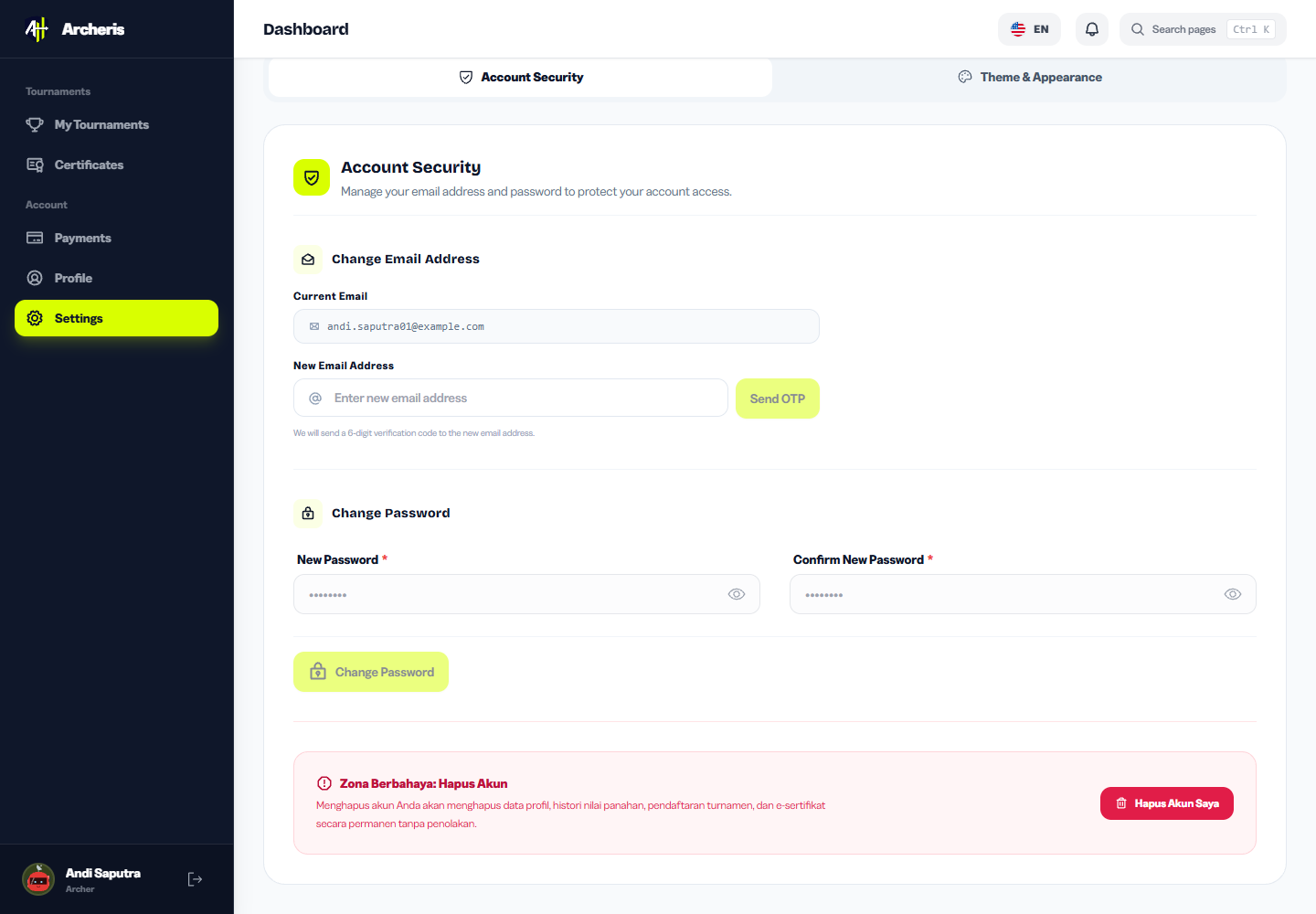
- Click Hapus Akun Saya (Delete My Account).
- Enter your account password (or type
HAPUSif logged in via Google), then click Ya, Hapus Akun to permanently remove your account.
Via Archeris Mobile App
- Open the Archeris Mobile App and tap the Profile tab.
- Open Settings (Gear icon in the top right corner).
- Select Security, scroll to the Danger Zone, and tap Delete Account.
- Authorize the deletion with your password or typing
HAPUS.
3. How to Delete an Organizer Account
- Sign in to your Organizer Account on Archeris.
- Navigate to Organizer Settings > Security tab.
- Scroll down to the Danger Zone card.
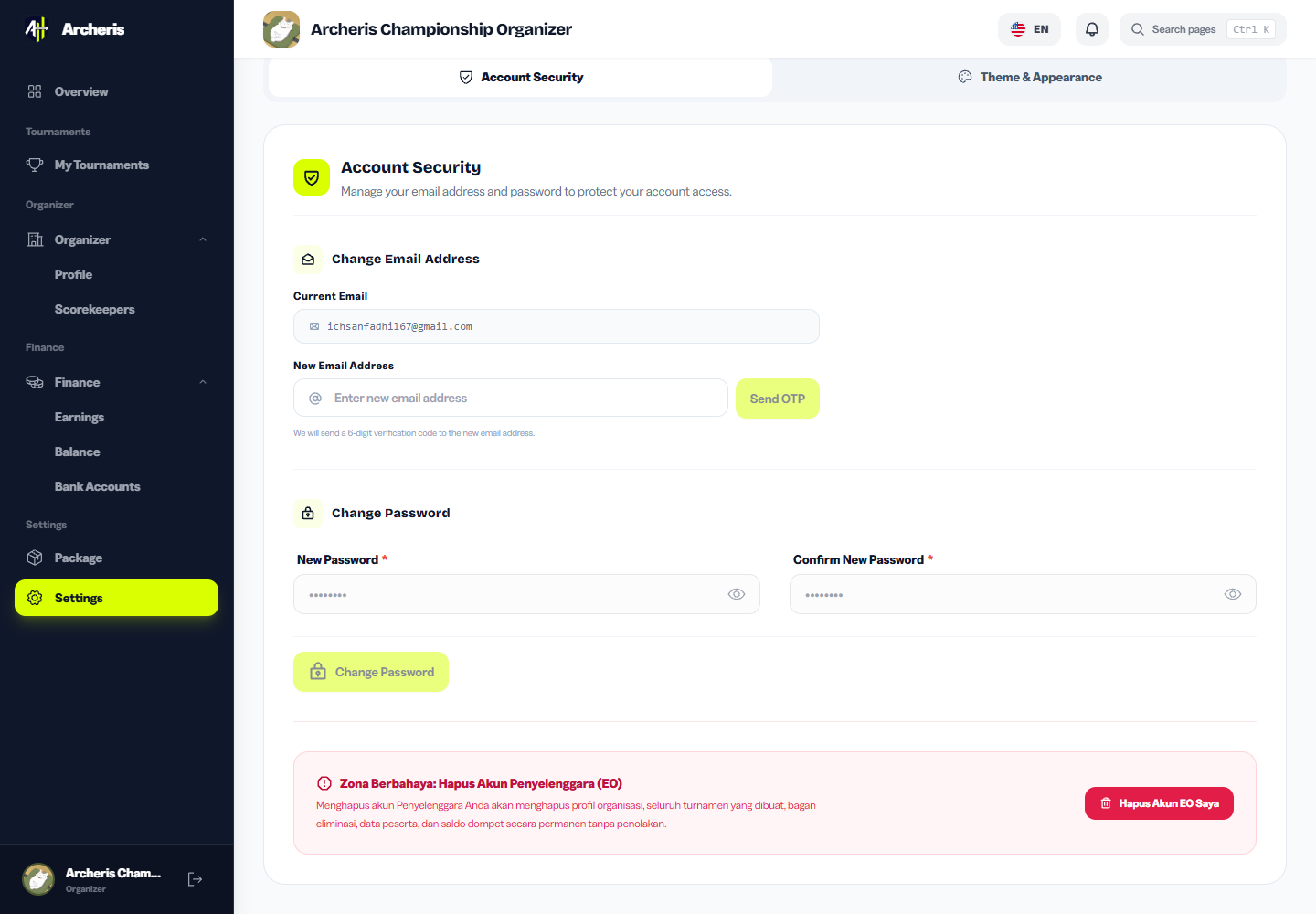
- Click Hapus Akun EO Saya.
- Pahami peringatan bahwa seluruh turnamen yang pernah dibuat, bagan eliminasi, dan sisa saldo dompet akan terhapus otomatis.
- Enter your password (or type
HAPUS) to execute the permanent deletion.
4. Data Removed Upon Deletion
| Module | Archer Account | Organizer Account |
|---|---|---|
| Profile & Credentials | Purged (Name, Email, Bio, Avatar) | Purged (Organization Name, Logo, Contacts) |
| Scores & Brackets | Purged (Arrow scores, ends, bracket matches) | Purged (All bracket trees & match results) |
| Tournaments | Roster registrations cancelled | All hosted tournaments & categories deleted |
| Certificates | All participation certificates purged | Event certificate templates deleted |
| Wallet & Payments | Payment history purged | Wallets, balance, and bank accounts purged |
5. Deletion Assistance
If you uninstalled the app and need manual deletion assistance, email our support desk:
- Email:
support@archeris.net - Subject:
Account Deletion Request - [Your Registered Email] - Note: Send the email from your registered account address for verification.
Last updated on October 20, 2026