
Tournament Creation Form
A field-by-field walkthrough of the Create Tournament page: quota package selection, tournament identity, schedule, description, visibility, and what happens after you click Create.
The Create Tournament page is a single-page form where you fill in everything needed to register a new tournament in the system. It takes about 2–3 minutes to complete. Once submitted, your tournament is saved and you are returned to the tournament list where you can continue building it out — adding categories, targets, schedules, and more.
1. Opening the Create Tournament Page
To reach the creation form:
- Log in as an organizer and go to Organizer Dashboard > Tournaments.
- Click the + Create New button at the top right of the tournament list.
- The Create Tournament form opens immediately — no additional steps required.
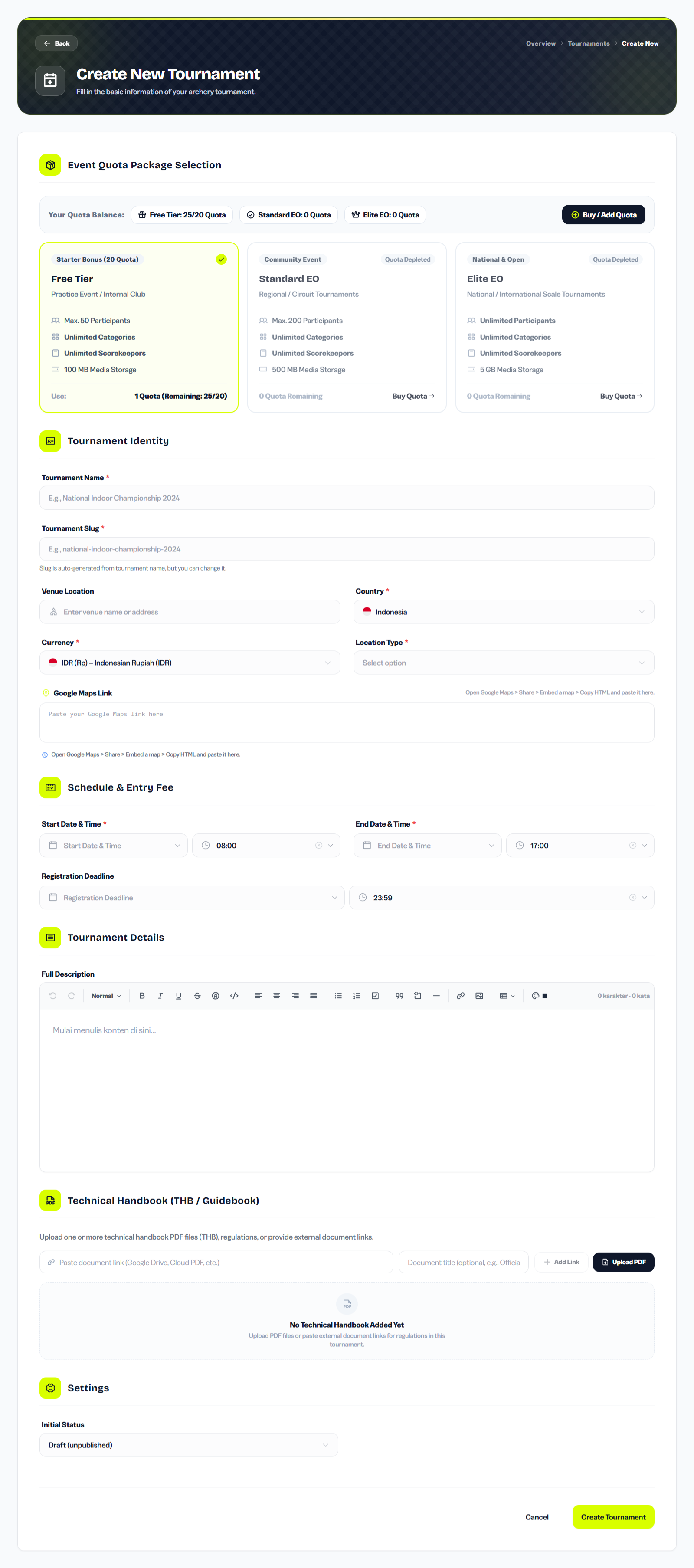
You must have at least one available quota slot to create a tournament. If all your quota is depleted, the page will redirect you back to the tournament list with a notification to purchase more quota first.
2. Selecting a Quota Package
The first section on the form is the Event Quota Package selector — the most important decision you make before creating a tournament. This choice determines the capacity and storage limits that are permanently locked to this tournament. Three tiers are available:
| Tier | Best For | Participant Limit | Media Storage | Starting Balance |
|---|---|---|---|---|
| Free Tier | Practice events, internal club scoring | Max. 50 participants | 100 MB | 20 quota (welcome bonus) |
| Standard EO | Regional / circuit / club open tournaments | Max. 200 participants | 500 MB | Purchased separately |
| Elite EO | National / provincial / international scale | Unlimited | 5 GB | Purchased separately |
The quota balance bar at the top of this section shows exactly how many slots you have for each tier. A tier card is grayed out and unselectable if you have zero of that type. Click Buy / Add Quota to purchase more from the subscription page.
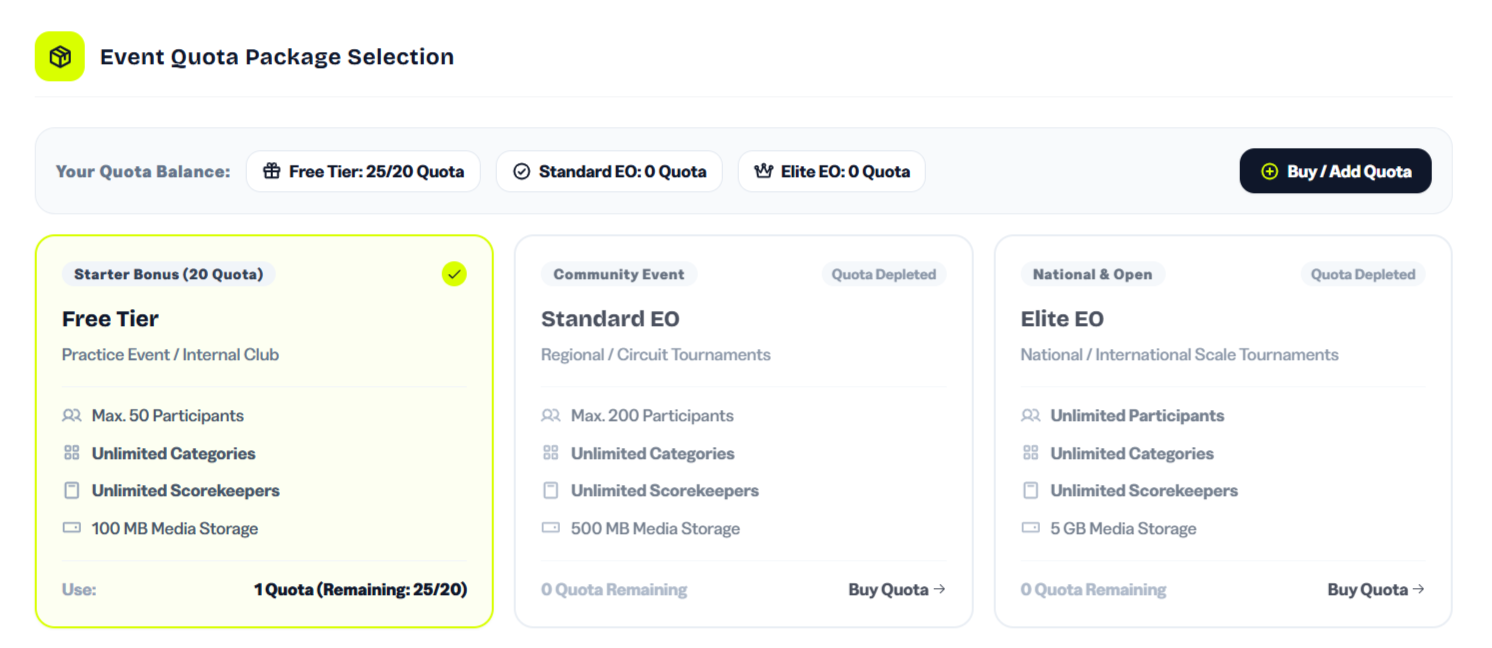
Before selecting a tier, read the following rules carefully — quota is a non-reversible resource once consumed.
⚠️ When Is Quota Deducted?
Quota is deducted immediately when you click Create Tournament — not when you publish. This means:
- Creating a tournament as Draft still consumes 1 quota slot right away.
- A tournament sitting in Draft mode for weeks still holds its quota — it will not be returned while the tournament exists.
- If the server rejects your creation (e.g., a validation error), quota is not deducted — the deduction only happens when the tournament is successfully created.
⚠️ Is Quota Refunded if I Delete a Tournament?
Partial refund rules apply depending on whether the tournament was ever published:
- Tournament deleted while still in Draft status: Quota is NOT refunded. Once a slot is consumed, it is gone regardless of whether the tournament went live.
- Tournament deleted after being Published: For Standard and Elite tiers only, the quota slot is refunded back to your balance. Free tier quota is never refunded.
The practical lesson: do not create a tournament until you are ready to follow through with it. Creating and immediately deleting a tournament to "test" the system wastes a permanent quota slot.
⚠️ Can I Upgrade a Tournament's Tier After Creation?
No. The tier you select on this form is permanently locked to the tournament. The participant limit, storage quota, and tier badge are embedded in the tournament record at creation time. If you later realize your Free Tier tournament needs more than 50 participants, you cannot upgrade it — you would need to create a new tournament using a Standard or Elite slot.
This is why the tier decision matters before you click Create: think about your expected participant count and storage needs before choosing. When in doubt, choose one tier higher than you think you need.
Free Tier Quota — 20 Welcome Slots
Every new organizer account starts with 20 free quota slots at no cost. These are perfect for getting familiar with the platform before running a paid event. A few things to know about free tier quota:
- Free quota is limited to 20 total uses per organizer account — it does not reset or renew.
- Once all 20 are used, you must use Standard or Elite quota for future tournaments. Free tier quota cannot be purchased or topped up.
- Free tournaments are capped at 50 participants and 100 MB storage — if your club sparring event grows unexpectedly, you cannot add more capacity to a Free tier tournament after it is created.
Use your free quota for small internal events, trial runs, or practice scoring sessions. Save Standard and Elite quota for public competitions where participant numbers and storage demands are higher.
3. Tournament Identity Fields
The Tournament Identity section holds the core details that identify your tournament. Fill in the following:
- Tournament Name (required): The official title of your event — e.g., National Indoor Championship 2026. This appears on the public tournament page, participant invoices, and printed certificates.
- Tournament Slug (required): The URL-friendly version of your tournament name — e.g.,
national-indoor-championship-2026. It is auto-generated from the name as you type, but you can edit it manually. Slugs must use only lowercase letters, numbers, and hyphens. The URL of your public tournament page will bearcheris.net/tournaments/your-slug. - Venue Location: The name of the shooting venue — e.g., Senayan Archery Field. Used on the public event page and in printed documents.
- Country (required): Selecting the country automatically sets the default currency. For example, selecting Indonesia sets the currency to IDR.
- Currency (required): The currency used for all registration fees and invoices. Changing this affects which payment gateways are available — IDR uses Mayar (QRIS, VA, e-wallet), other currencies use PayPal.
- Location Type (required): The competition format — choose from Outdoor, Indoor, Field, or 3D. This appears on the public event page and in official printouts.
- Google Maps Link: Paste an embed link from Google Maps (Share > Embed a map > Copy HTML). An interactive map preview appears below the field when the link is valid. This helps participants navigate to the venue on event day.
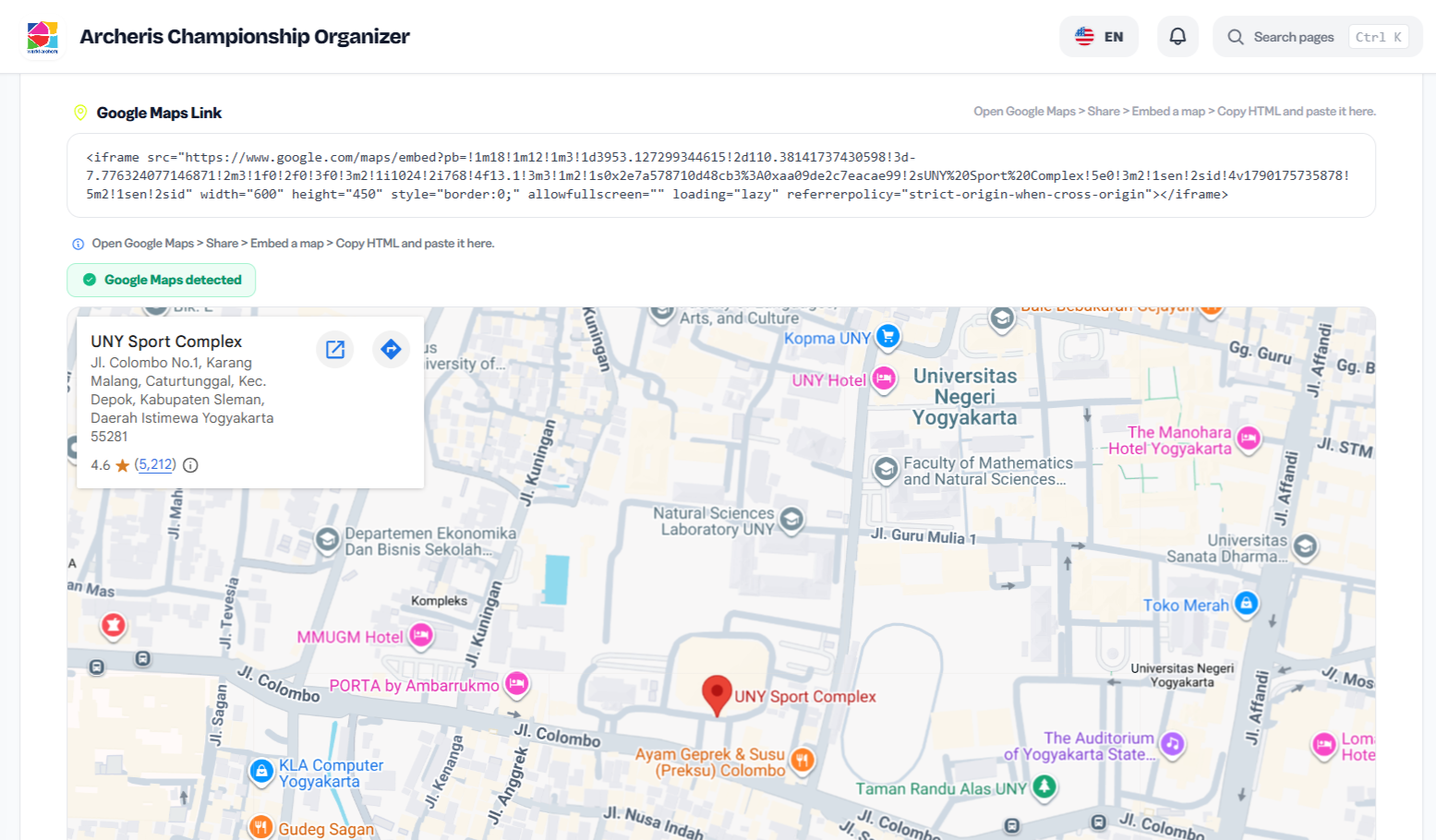
The slug is the only field that cannot be changed easily after participants start registering — their registration links and ticket URLs include the slug. Set it to something clean and final before publishing.
4. Schedule & Dates
The Schedule & Entry Fee section sets the key dates for your event:
- Start Date & Time (required): The first day and time of your tournament — typically when archers arrive for equipment inspection or the first qualification session. Default time is 08:00.
- End Date & Time (required): The last day and time of the event — usually the medal ceremony or certificate distribution. Must be after the start date. Default time is 17:00.
- Registration Deadline (optional): The date and time after which online self-registration closes. Once this deadline passes, participants can no longer register themselves — only organizers can add them manually. Default time is 23:59. Leave it blank for open registration until the event starts.
Tip: Set the registration deadline at least 5–7 days before the start date to give yourself time to finalize target assignments, print scorecards, and handle any payment verification before the event begins.
5. Description & Settings
The Tournament Details section contains a rich text editor for the full tournament description. Use it to describe the event format, competition rules, equipment inspection requirements, dress code, and any other information participants need to know before registering. The description is displayed on the public tournament page.
The Settings section has two controls:
- Initial Status: Choose Draft (unpublished) to save the tournament privately first, or Published (active immediately) to make it publicly visible and open for registration right away. You can always publish a draft later from the tournament workspace.
- Tournament Visibility (only shown when status is Published): Choose Public / Listed to have the tournament appear in the public directory at
/tournamentsand be indexed by search engines. Choose Private / Unlisted to keep the tournament page accessible only via direct link, hidden from the public directory and search engines — useful for invite-only or club-internal events.
Most tournaments should start as Draft. This gives you time to add categories, set registration fees, and configure targets before participants can sign up. Switch to Published only when the tournament is fully configured.
6. After You Click Create Tournament
Once you fill in all required fields and click Create Tournament, the system:
- Deducts one quota slot from your account (Free, Standard, or Elite — whichever tier you selected).
- Creates the tournament workspace with a unique auto-generated code (e.g.,
EVT-0042) and your chosen slug. - Redirects you back to the Tournaments List with a success notification.
From the tournament list, click your new tournament card to enter the tournament workspace — where you continue setting up categories, registration fees, targets, schedules, and everything else before publishing to participants.