
Adding Participants Manually
How to manually register participants for your tournament: individual registration, bulk registration, and CSV import.
Although most participants register themselves through the tournament registration page, there are times when you as an organizer need to register participants manually. For example, for invited guests, athletes who register on-site, or participants from clubs registering collectively. Archeris provides several ways to add participants manually.
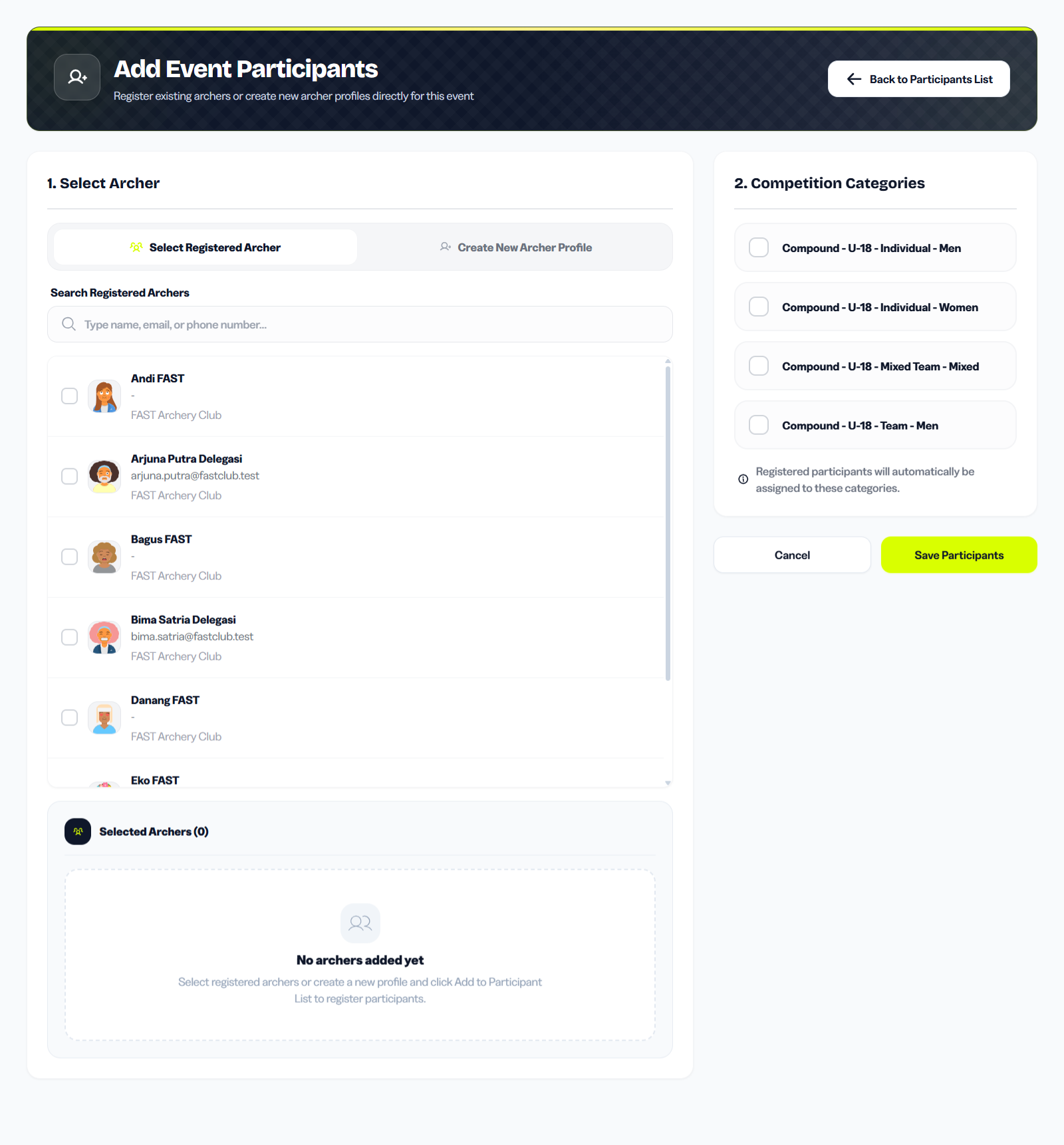
The Participants page shows all registered archers for a tournament with their payment status, category, and club. From here you can add individuals, import a CSV, or search and filter the existing list.
1. When to Register Participants Manually
Situations that require manual registration:
- Invited guests: Athletes specially invited by the organizer without paying registration fees.
- Walk-in registration: Participants who come directly to the venue and register on-site.
- Collective registration: Clubs or schools registering all their athletes at once through the organizer.
- Data correction: Participants who already registered but need their data corrected or updated by the organizer.
In all these cases, the organizer has full control to add, edit, or adjust participant records directly from the tournament dashboard.
2. Registering Participants One by One
To add a participant individually:
- Go to Organizer Dashboard > Tournaments > [Select Tournament] > Participants.
- Click the + Add Participant button.
- Fill in the registration form with participant data:
- Full Name: Official participant name (will be printed on certificates).
- Club / Contingent: Club origin or "Independent" if none.
- Category: Select the competition category.
- Payment Status: Choose Paid if already paid, Unpaid if not, or Free for invited guests.
- Click Save. The participant will immediately appear in the list with the status you set.
Note: If payment status is set to "Free", the participant does not need to go through payment checkout and is immediately confirmed.
3. Registering Multiple Participants at Once
To register many participants in one step:
- Open the Participants page for your tournament.
- Click the Batch Register button (available depending on your subscription plan).
- Set the same category for all participants or choose different categories per participant.
- Enter participant data in the batch form.
- Click Submit to process all registrations at once.
All participants registered in batch will receive automatic registration numbers and appear in the participant list.
4. Importing Participants from CSV File
If you already have participant data in spreadsheet format (Excel/CSV), you can import directly:
- Prepare a CSV file with the following columns (order can vary, but column names must match):
full_name- Participant full namedate_of_birth- Date of birth (format: YYYY-MM-DD)gender- Gender (male / female)city- City of originemail- Participant email (optional)phone- Phone number (optional)division- Bow division (Recurve / Compound / Barebow / etc.)category- Category name (must match categories already created in the tournament)
- Open the Participants page for your tournament.
- Click the Import CSV button.
- Upload your CSV file. The system will validate the data and show a preview before importing.
- Review the preview, make sure there are no errors. If any rows have issues, fix the CSV file and re-upload.
- Click Confirm Import to process.
After a successful import, all participants will be added to the list with default payment status Unpaid. You can change payment status manually or in batch.