
Creating Event Schedule & Rundown
How to build a tournament schedule: adding daily sessions, setting start/end times, assigning categories, and managing rundown.
A tournament schedule is the main guide for participants, organizers, and scorekeepers. A clear schedule tells everyone when to arrive, when their shooting turn is, and when the elimination rounds begin. In Archeris, you can build a tournament schedule day by day and add activities one by one.
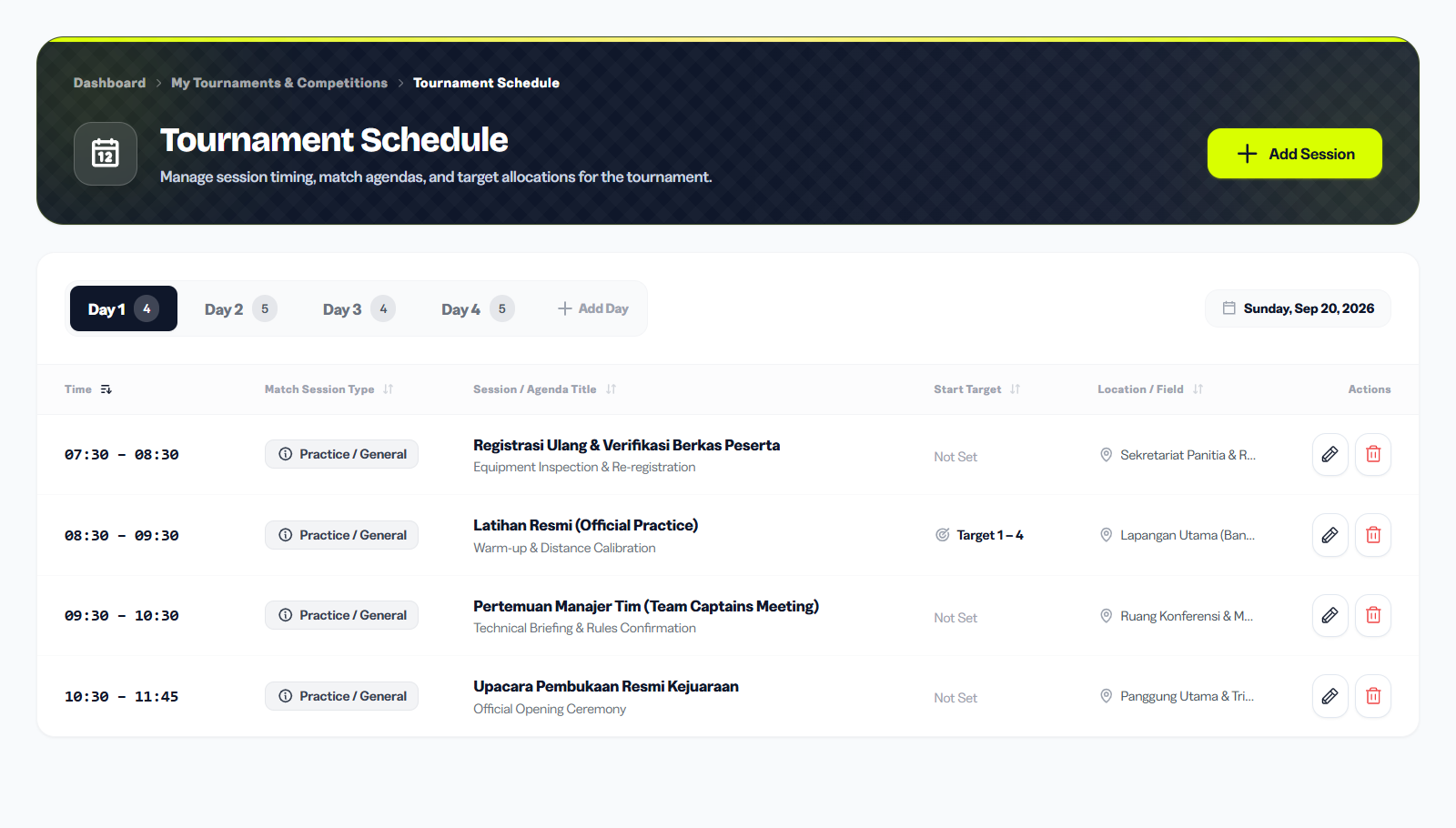
The schedule page organizes everything by day using tabs. Participants, scorekeepers, and spectators can all see the published schedule from the tournament's public page under the Schedule tab.
1. Why Tournament Schedule Matters
A tournament schedule is not just for participants, but also:
- Organizers: Know when to prepare the field, targets, and scorekeepers.
- Scorekeepers: Know which session to handle and what time to start scoring.
- Participants: Can plan their attendance, especially if they are competing in multiple categories on different days.
- Public: Parents, coaches, and spectators can know when the finals are scheduled to watch.
Once the schedule is created, it will appear in the Schedule tab on the tournament public page and in the archer dashboard.
2. Adding Schedule Items
To add a schedule item:
- Go to Organizer Dashboard > Tournaments > [Select Tournament] > Schedule.
- Select the day you want to manage using the Day 1, Day 2, Day 3 tabs.
- Click the + Add Schedule Item button.
- Fill in the schedule form:
- Activity Title: Session name, e.g. "Qualification Round - Recurve 70m" or "Technical Meeting".
- Start Time: Session start time in 24-hour format (e.g. 08:00).
- End Time: Session end time (e.g. 11:30).
- Description: (Optional) Additional notes about this session.
- Location: (Optional) If the venue has multiple fields, specify which one to use.
- Activity Type: Choose session type - Technical Meeting, Qualification, Elimination, Finals, Award Ceremony, etc.
- Click Save. The schedule item will appear in the selected day timeline.
You can add as many schedule items as needed. Each item will be displayed in order by start time.
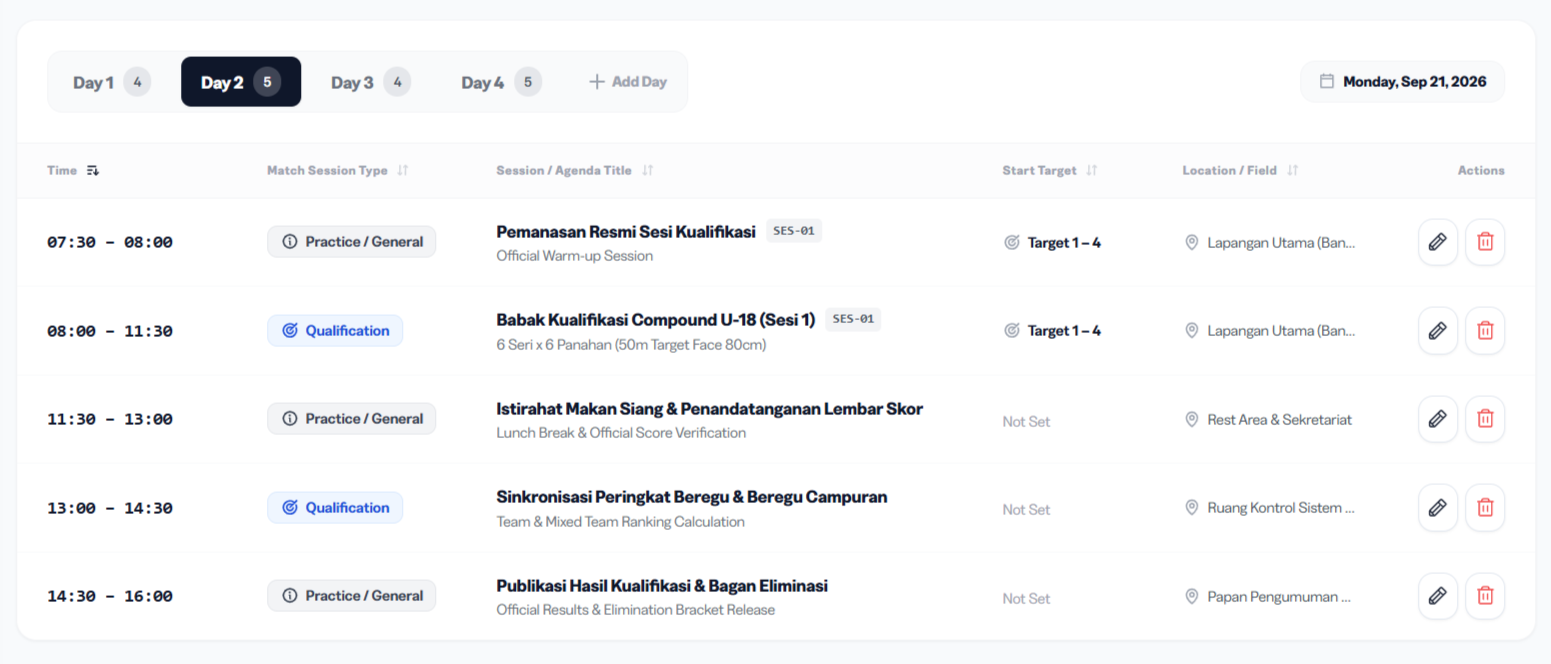
The Activity Type field helps color-code the timeline — qualification sessions, elimination rounds, and ceremonies appear in distinct visual styles so participants can scan the schedule at a glance.
3. Day System & Qualification Sessions
Archeris organizes schedules by Day. This makes it easy to separate activities per day:
- Day 1: Technical meeting, practice session, re-registration.
- Day 2: Qualification for all categories (Recurve, Compound, Barebow).
- Day 3: Elimination rounds, finals, podium, and certificate distribution.
For single-day tournaments, use Day 1 for all activities. For multi-day tournaments, create new days by clicking the + Add Day button.
4. Tips for Building a Tournament Schedule
- Leave 15-30 minute gaps between qualification sessions so participants can rest and organizers can replace target faces.
- Start qualification early in the morning (07:00-08:00) when the weather is cooler and wind is lighter.
- Separate categories by bow type - do not mix Recurve and Compound in the same session since shooting distances differ.
- Have a backup schedule for rain or delays. You can shift the entire schedule using the Shift Schedule feature.
- Publish the schedule only when finalized - participants will receive notifications when the schedule is updated.
A clear, realistic schedule is one of the most visible signs of a well-run tournament. Participants talk — a schedule that runs on time builds your reputation as a reliable organizer for future events.