
Verifying Registration Payments
Learn how organizers review participant payment proofs, verify bank transfers or gateway transactions, handle rejections, and how archers re-upload proofs or cancel payments.
When archers register for your tournament, their registrations start with a Pending Payment status until their transaction is verified. Depending on the payment method they chose — automatic gateway or manual bank transfer — verification either happens instantly or requires your manual review. This guide explains both workflows so you know exactly what to do for each payment type.
1. Overview of Payment Verification
Archeris supports two primary payment workflows:
- Direct Manual Transfer: Participants upload a payment receipt (bank transfer slip, QRIS screenshot). You review the image and mark the transaction as paid.
- Automated Payment Gateway: Payments made via Mayar (QRIS, Virtual Account, e-wallet) or PayPal are verified automatically via webhook — no action required from you.
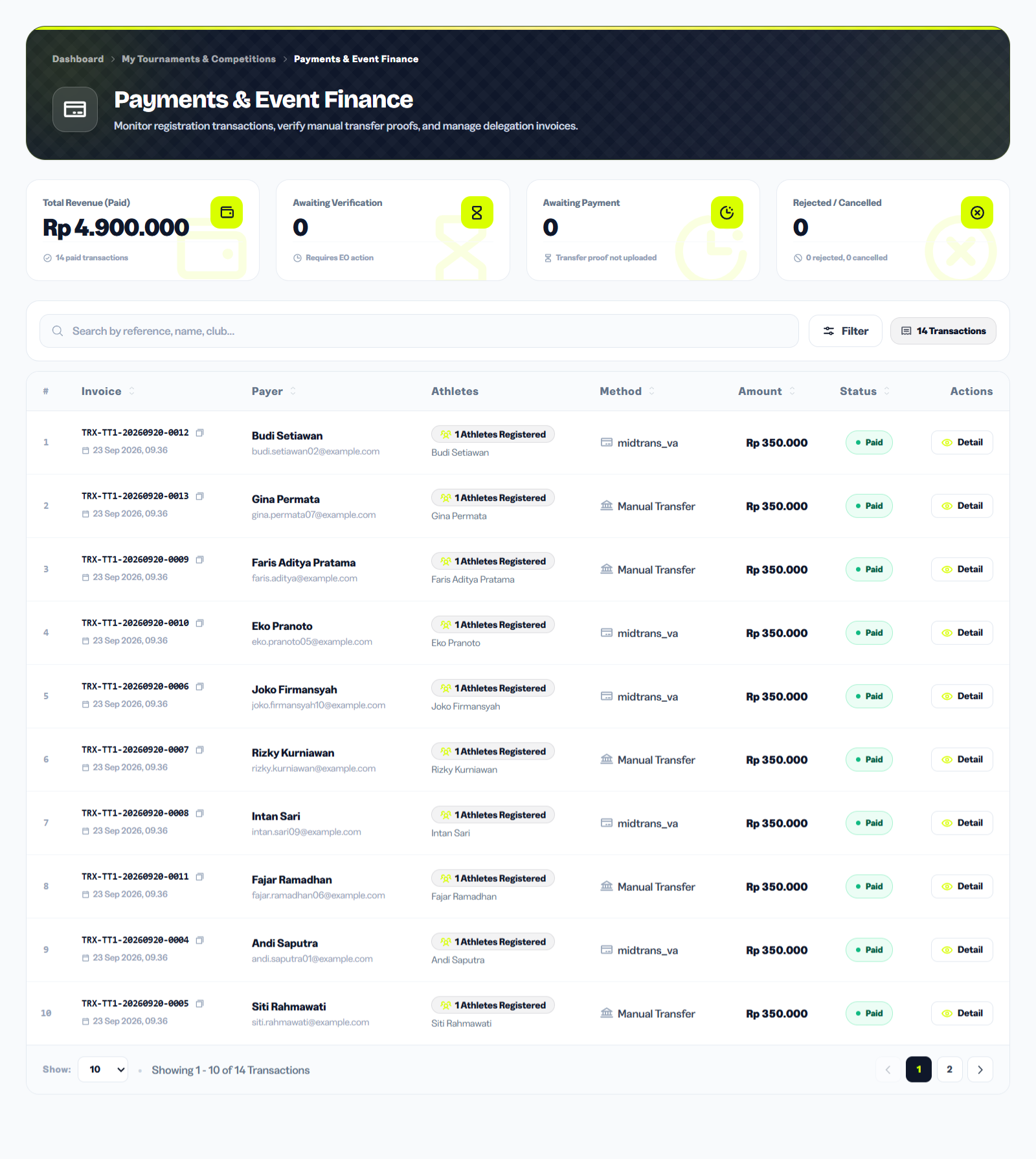
You can access all payment transactions for a specific tournament from Organizer Dashboard > Tournaments > [Your Tournament] > Payments.
2. Manual Bank Transfer Verification
To inspect and confirm manual bank transfer submissions:
- Go to Organizer Dashboard > Tournaments > [Select Tournament] > Payments.
- Filter the transaction list by Status: Awaiting Verification.
- Click any transaction row to open the transaction detail view.
- Inspect the uploaded receipt image, bank reference number, transfer timestamp, and amount against your actual bank statement.
Cross-check the transfer amount carefully against the invoice total before approving. Partial payments or mismatched amounts are the most common reason for rejection.
3. Automatic Gateway Verification
For payments made via Mayar (QRIS, Virtual Account, GoPay, OVO, Dana, ShopeePay, or card) and PayPal, the status updates to Paid in real time as soon as the participant completes checkout. The system automatically releases the participant's confirmed registration slot and assigns their category quota. You do not need to take any action for these transactions.
4. Approving or Rejecting Transactions
When reviewing a pending manual payment, you have two options:
- Approve: Click Approve Payment. The transaction status switches to Paid, the participant's registration is confirmed, and a confirmation notification is sent to them.
- Reject: Click Reject Payment and enter a brief reason (e.g., "Transfer amount did not match the registration fee — please re-upload a valid receipt"). The participant can then re-upload a corrected receipt from their account dashboard.
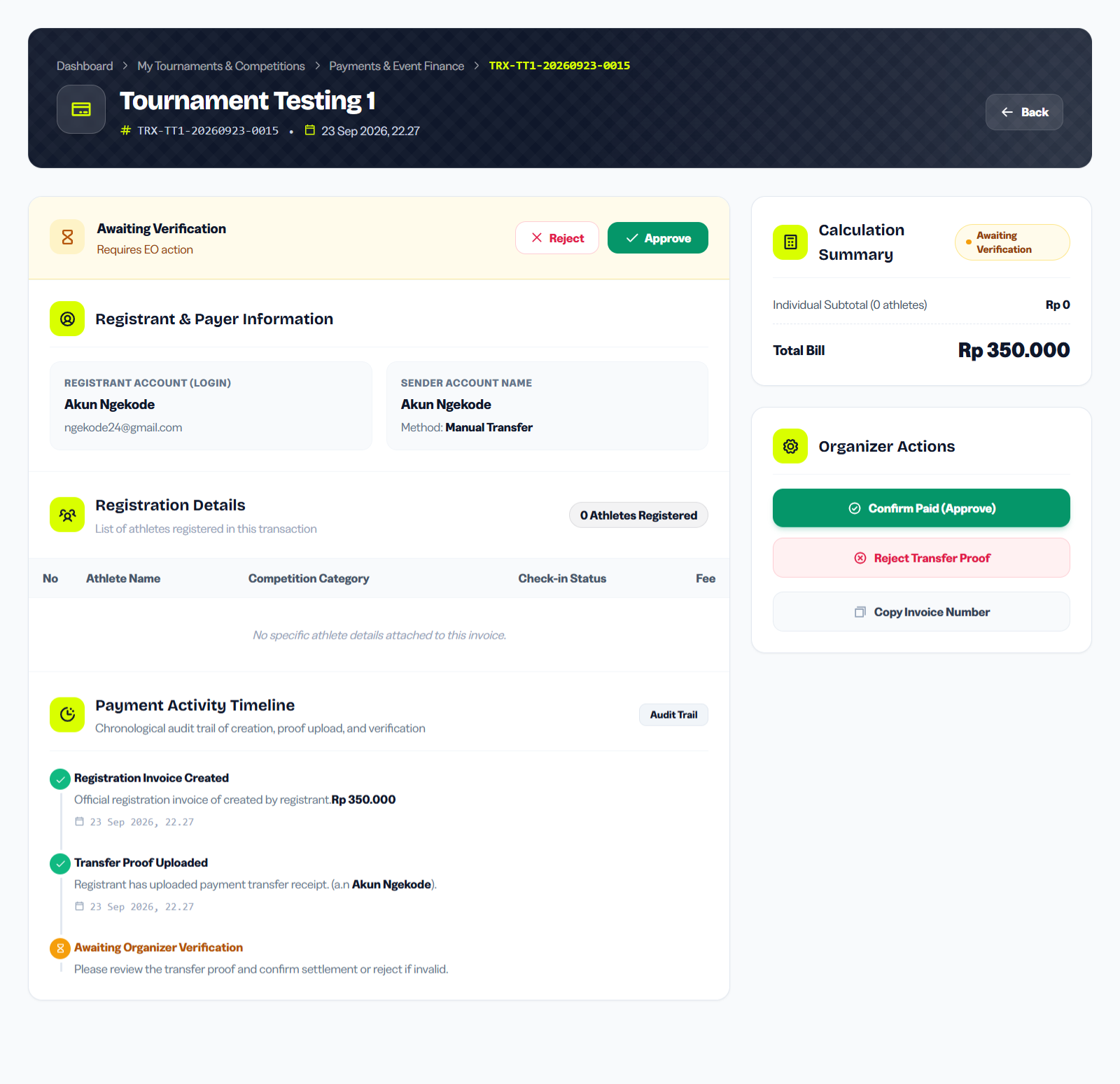
Always write a clear rejection reason — participants cannot see your bank account statement, so a specific message helps them understand exactly what went wrong and what to fix.
5. What Archers Must Do After a Rejection
When an organizer rejects a manual transfer receipt, the transaction status switches to Rejected on the participant's dashboard. Archers or team managers do not need to restart their registration from scratch. Instead, they should follow these steps:
- Navigate to Archer Dashboard > Payment History > Invoice Details (#PAY-...).
- Review the specific rejection note provided by the organizer in the payment status and activity timeline.
- In the Re-upload Payment Proof section, ensure the Sender Account Name is accurate.
- Select and upload a clearer, updated photo or scan of the payment receipt (supports JPG, PNG, WEBP, or PDF up to 5 MB).
- Click Submit Re-upload Proof. The transaction status immediately returns to Awaiting Verification, notifying the organizer to inspect and approve the revised submission.
6. Payment Cancellation from the Archer's Side
Archeris allows participants to cancel unpaid invoices when necessary:
- Online Gateway Transactions (Pending): For unpaid Mayar or PayPal transactions (status Pending), archers can click the Cancel Transaction button at the bottom of the invoice view. After confirming via the warning modal, the transaction status immediately changes to Cancelled.
- Slot Release & Re-registration: Once an invoice is cancelled or reaches its expiration timeout (Expired), any temporarily reserved slot quotas are released back to the event pool. Archers can initiate a fresh registration anytime as long as registration deadlines and category quotas remain open.
- Manual Bank Transfer Invoices: For manual payment requests where the archer chooses not to proceed before uploading a receipt, they can allow the invoice to expire naturally or contact tournament organizers.