
Setting Up Tournament Targets
Master guide to tournament target management: configuring physical target butts (1A-1D), understanding the 2 target dashboard pages, automated World Archery draw algorithms, and scoring safety protections.
Target lane management in Archeris controls how physical shooting butts on the field are configured and how registered archers are assigned to specific shooting positions (1A, 1B, 1C, 1D). This system is split into two specialized interfaces: Master Field Target Setup and Qualification Session Target Allocation.
1. Two Target Management Pages in Dashboard
To keep tournament logistics organized, Archeris separates venue capacity from session scheduling:
- 1. Master Targets Page (
Organizer Dashboard > Tournaments > [Tournament] > Targets): Used to register the physical hardware available at your venue (e.g., Target 1 to 30, with 1 to 4 target faces per butt). This sets the tournament's overall shooting capacity. - 2. Qualification Session Allocation Page (
Organizer Dashboard > Qualification > [Select Session] > Target Management): The interactive workspace where participants in specific categories are placed onto target butts using Auto-Assign algorithms or manual drag-and-drop.
2. Configuring Master Field Targets
Before archers can be assigned to targets, you must register your field's target butts:
- Go to Organizer Dashboard > Tournaments > [Your Tournament] > Targets.
- Click + Add Target.
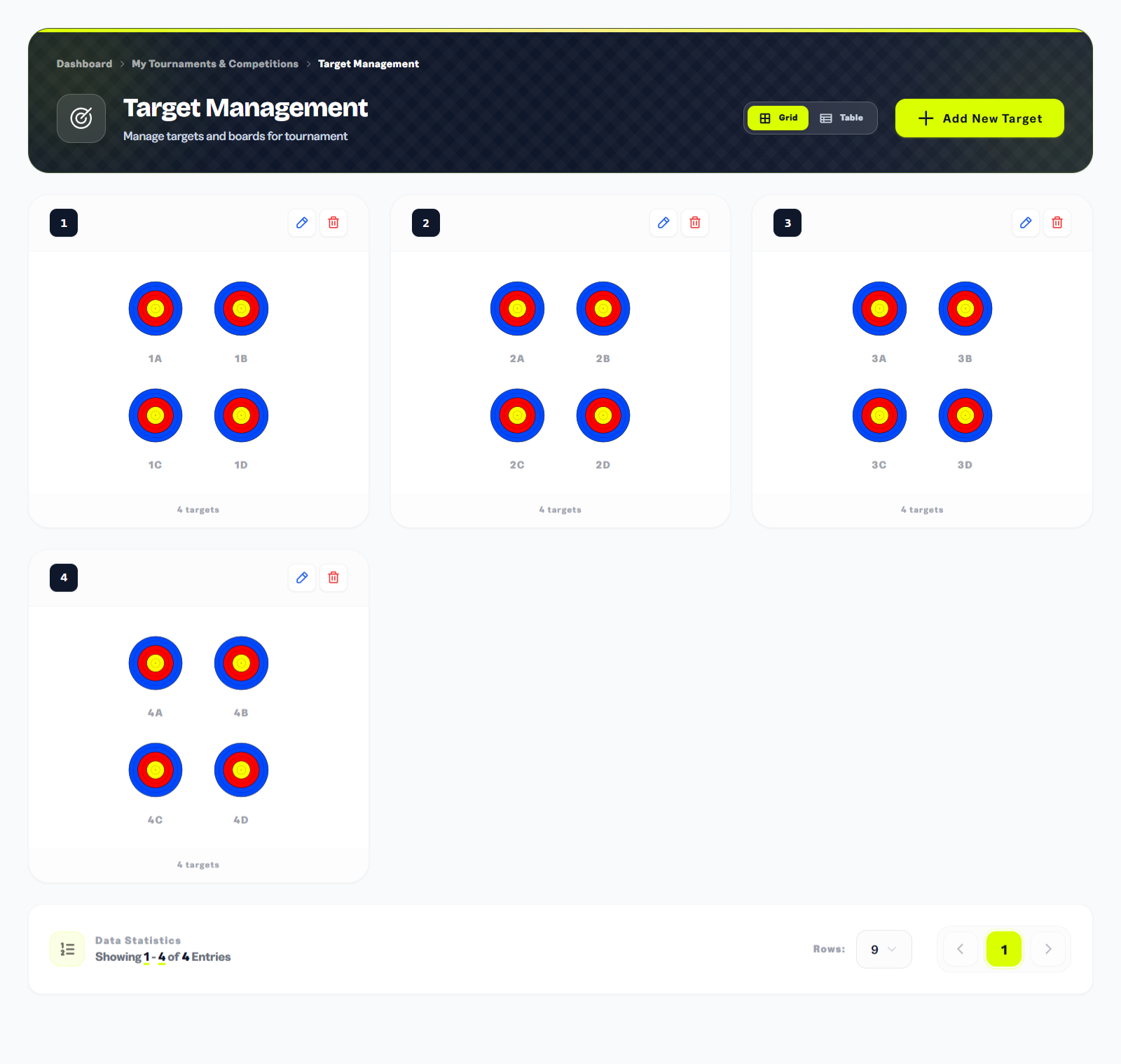
- Specify the Target Quantity (number of butts to create sequentially) and Target Face Count (1, 2, 3, or 4 boards per butt: A, B, C, D).
- Click Create Targets. The system automatically provisions the sequential butts and labels (e.g., Target 1 → 1A, 1B, 1C, 1D).
You can toggle between Grid View (visual target board diagram) and Table View (compact management list). Targets with existing archer assignments cannot be deleted accidentally without first unassigning those participants.
3. Board Numbering & World Archery (A, B, C, D) Details
In standard outdoor and indoor target archery under World Archery rules:
- Detail 1 (Wave 1): Archers in positions A and C shoot together on the first shooting horn.
- Detail 2 (Wave 2): Archers in positions B and D shoot together on the second shooting horn.
- End Alternation: In the following end, Detail 2 (B & D) shoots first, followed by Detail 1 (A & C), ensuring equal wind and lighting conditions for all competitors.
For 3-spot vertical indoor targets or small ranges, butts can be set to 2 boards (A, B) or 3 boards (A, B, C).
4. Auto-Assign: Standard Draw vs. Field Draw (Club Spread)
When placing archers in a qualification session, Archeris offers two automated draw algorithms powered by an IANSEO-compatible constraint solver:
- A. Standard Draw (Undian Standar - Pure Random): Shuffles all confirmed (paid) participants in the category randomly and fills target slots sequentially following the World Archery A → C → B → D wave pattern to maintain balanced detail distribution across all butts.
- B. Field Draw (Undian Lapangan - Fair Club Separation): The international tournament standard. The algorithm groups archers by club/delegation and sorts clubs with the largest rosters first. It then runs a multi-pass penalty evaluation to:
- Avoid Same-Club on Same Target (10,000 pt penalty): Strictly prevents archers from the same club from sharing a target butt, preserving peer-scoring neutrality.
- Avoid Same-Club in Same Wave (8,000 pt penalty): If target capacity forces teammates onto the same butt, it places them in opposite details (Wave 1: A/C vs. Wave 2: B/D) so they never shoot simultaneously on the line.
- Balanced Target Loading: Evenly distributes athlete density across active target butts.
5. Interactive Manual Slotting & Drag-and-Drop
For fine-tuning or custom placements:
- Kanban Unassigned Sidebar: Shows all confirmed participants grouped by club. Simply drag any archer card onto an available target position (A, B, C, D).
- Position Swapping (Tukar Posisi): Dragging one assigned archer onto another assigned slot automatically swaps their positions without requiring you to clear slots first.
- Archer Dropdown Picker: Clicking an empty slot opens an instant search picker to select and seat archers in seconds.
6. Scoring Integrity Locks & Smart Reset Protections
To protect competition data integrity during live tournaments, Archeris enforces strict safety rules:
- Live Scoring Auto-Lock: As soon as the first qualification score is recorded for a category (
ends_completed > 0), Auto-Assign, Reset, and bulk target adjustments are automatically locked at the API level. - Smart Reset: Clicking Reset Assignments only unseats archers who have not shot yet. Any archer with existing scores is safely preserved in place.
- Multi-Category Session Protection: When multiple categories share one qualification session, running Auto-Assign on Category B will never overwrite slots already occupied by Category A.
- Scorekeeper Mobile QR Codes: Each target butt generates a unique Board Code (e.g.,
001TGT) with QR code support for instant mobile scorekeeper tablet authentication.